 Skip to content
LG / Samsung TV's
For Samsung/LG Smart TVs:
There are two apps you can use on your TVs:
1-IPTV SMARTERS PRO (Free)
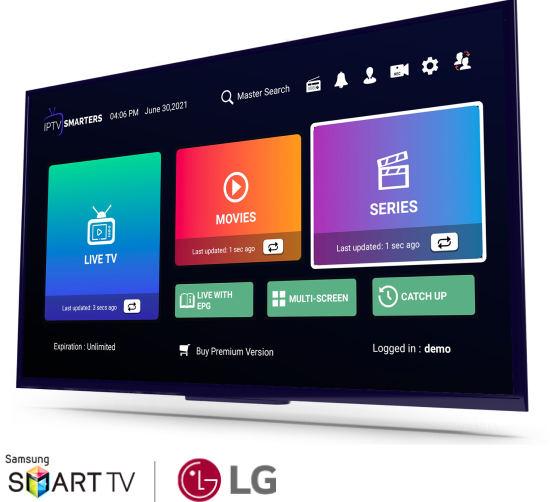
1- Go to the LG Store / Samsung Store (make sure your internet connection is enabled).
2- Go to the search bar and type IPTV Smarters Pro.
3- Install the application. (Allow the installation to complete)
4- Enter the details you received from your service provider.
5- Your device is now ready to use the IPTV service.
📌Note: If subtitles do not work in this app, try installing the Hot IPTV app as an alternative.
------------------
2- HotIPTV (Paid app)
This app is a paid app and offers a 30-day free trial subscription. After that, you must activate the app to continue viewing.

- Open your TV's app store and search for “Hot IPTV.”
Install it and copy the MAC address into the app. - Then go to their website: https://hotplayer.app/upload
and enter the MAC address you got from the app on your TV. - Next, copy the M3U Link you received in your email (marked in red).
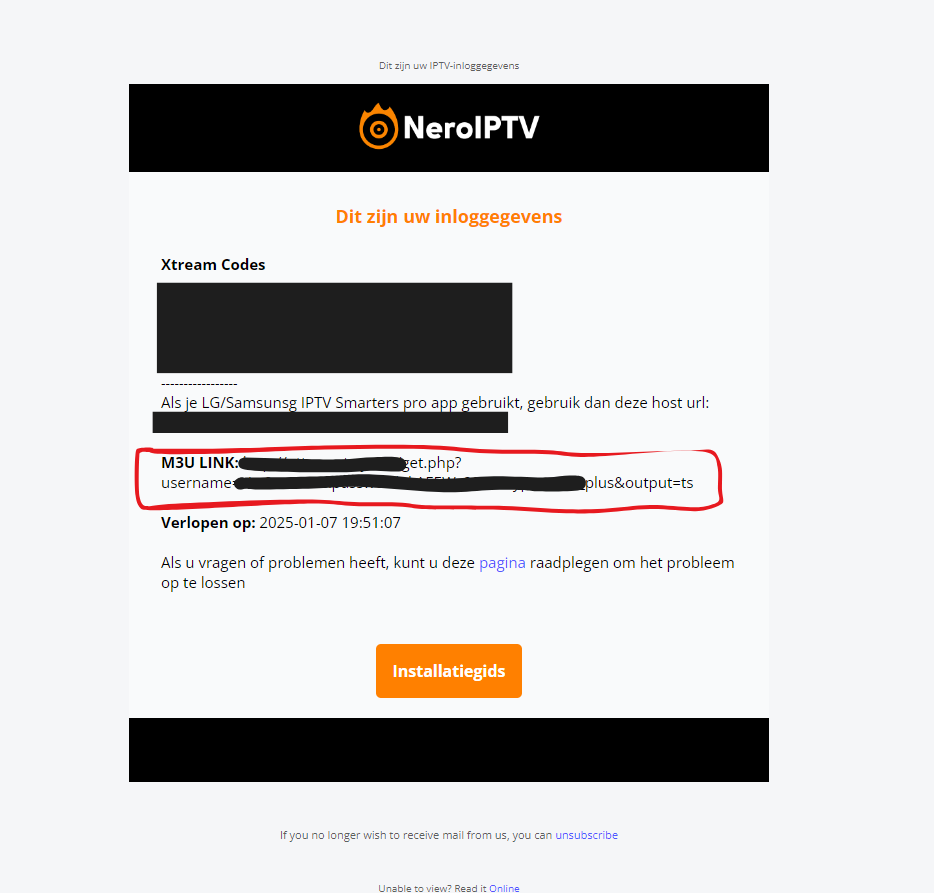
- Then paste it onto the website, choose a playlist name, and click save.
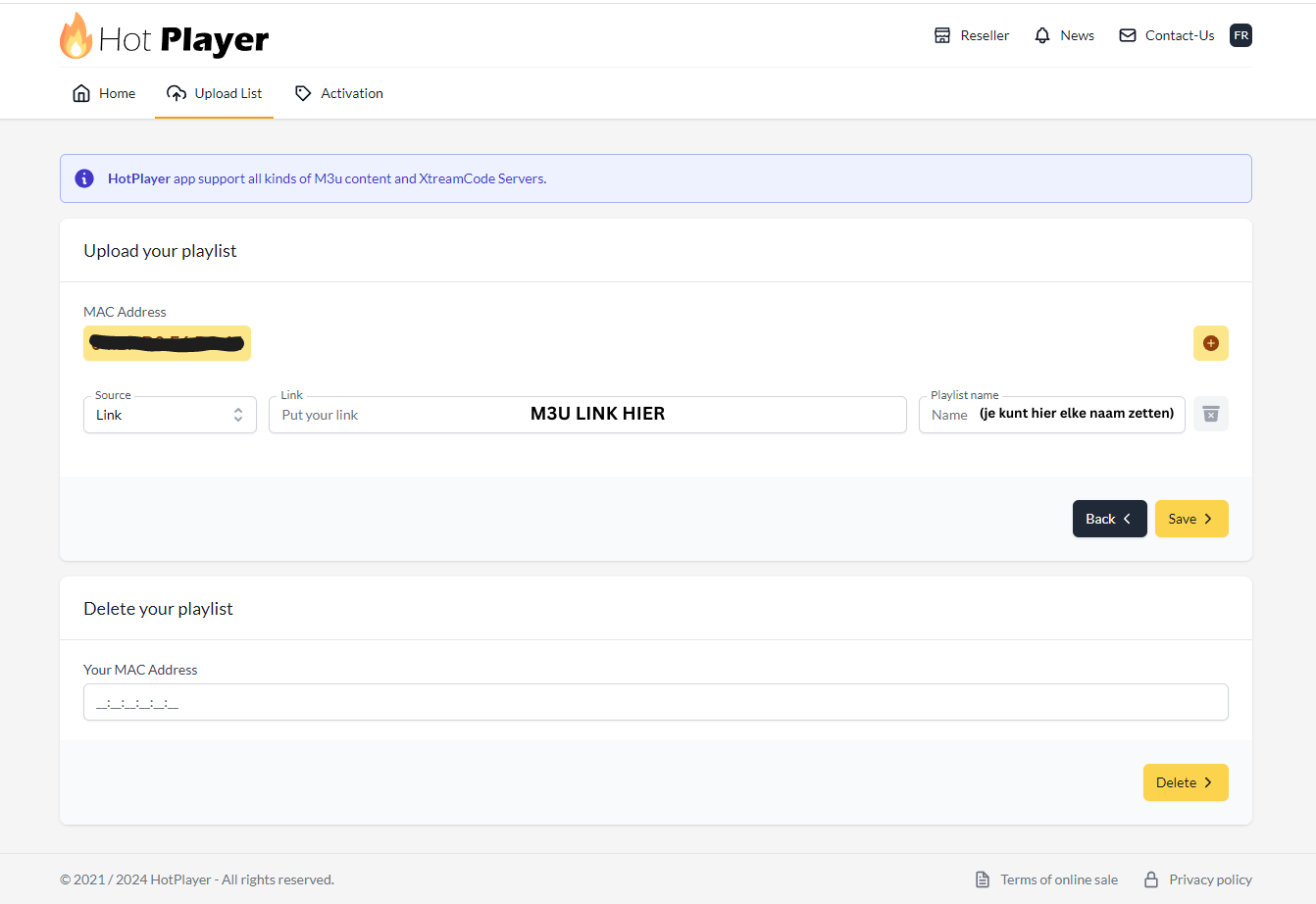
and you're done. You can reload the app on your TV to view the content.
Android / iPhone / Tablet / iPad
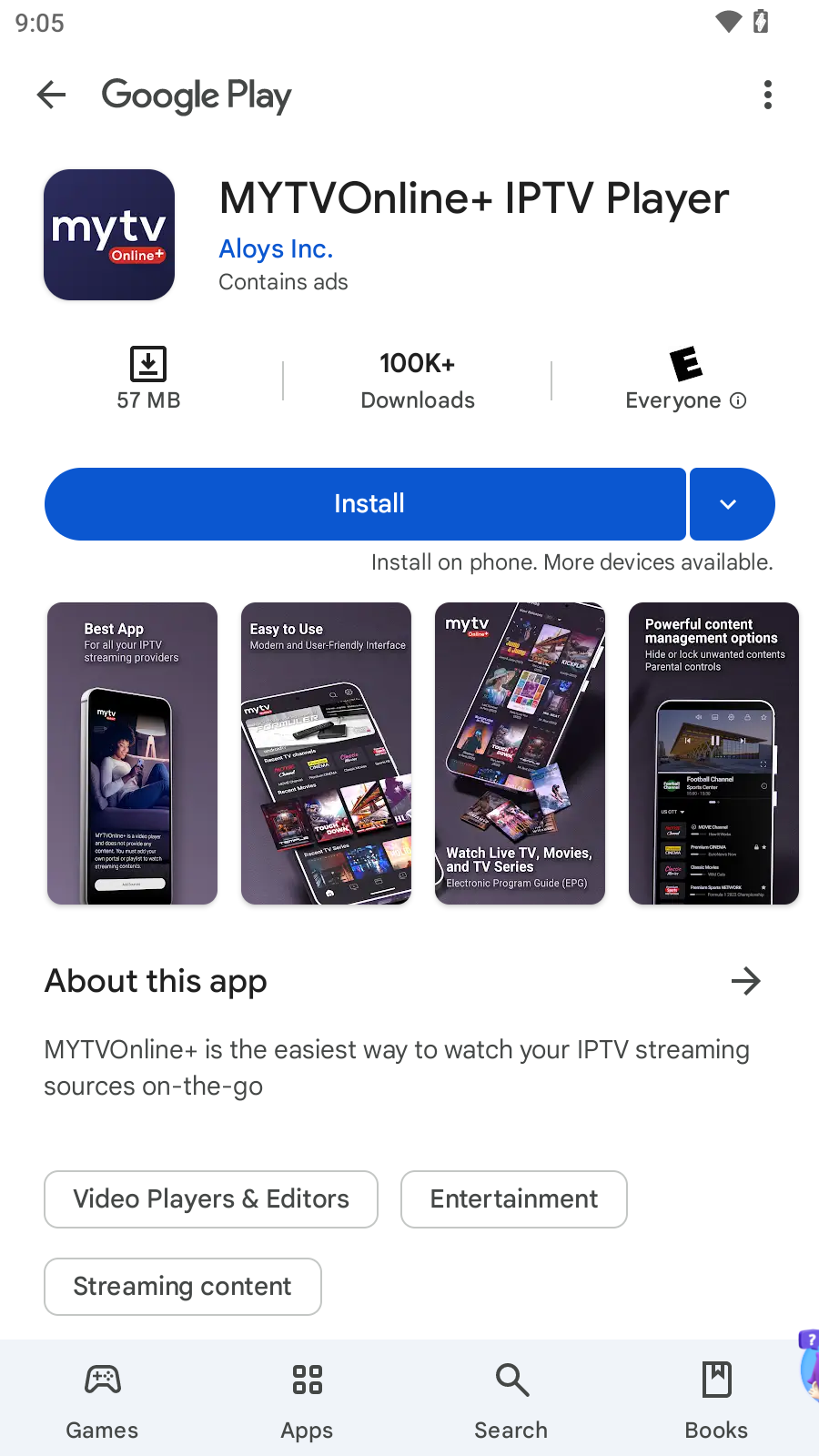
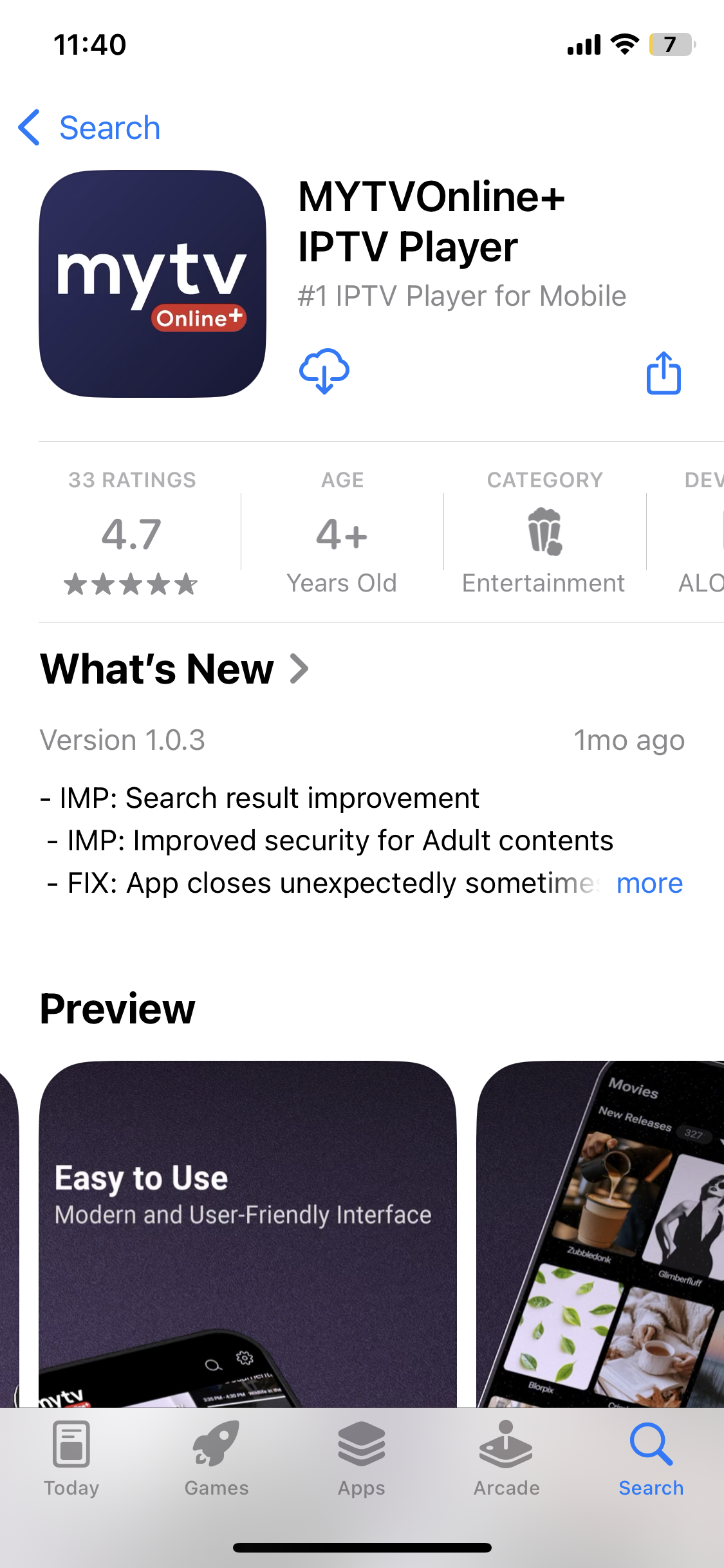
You can use any IPTV player you like, but we recommend MYTVOnline+ App because it is a good app with a better user interface that is available on both Android and iOS.
Op Google Play:
On the App Store:
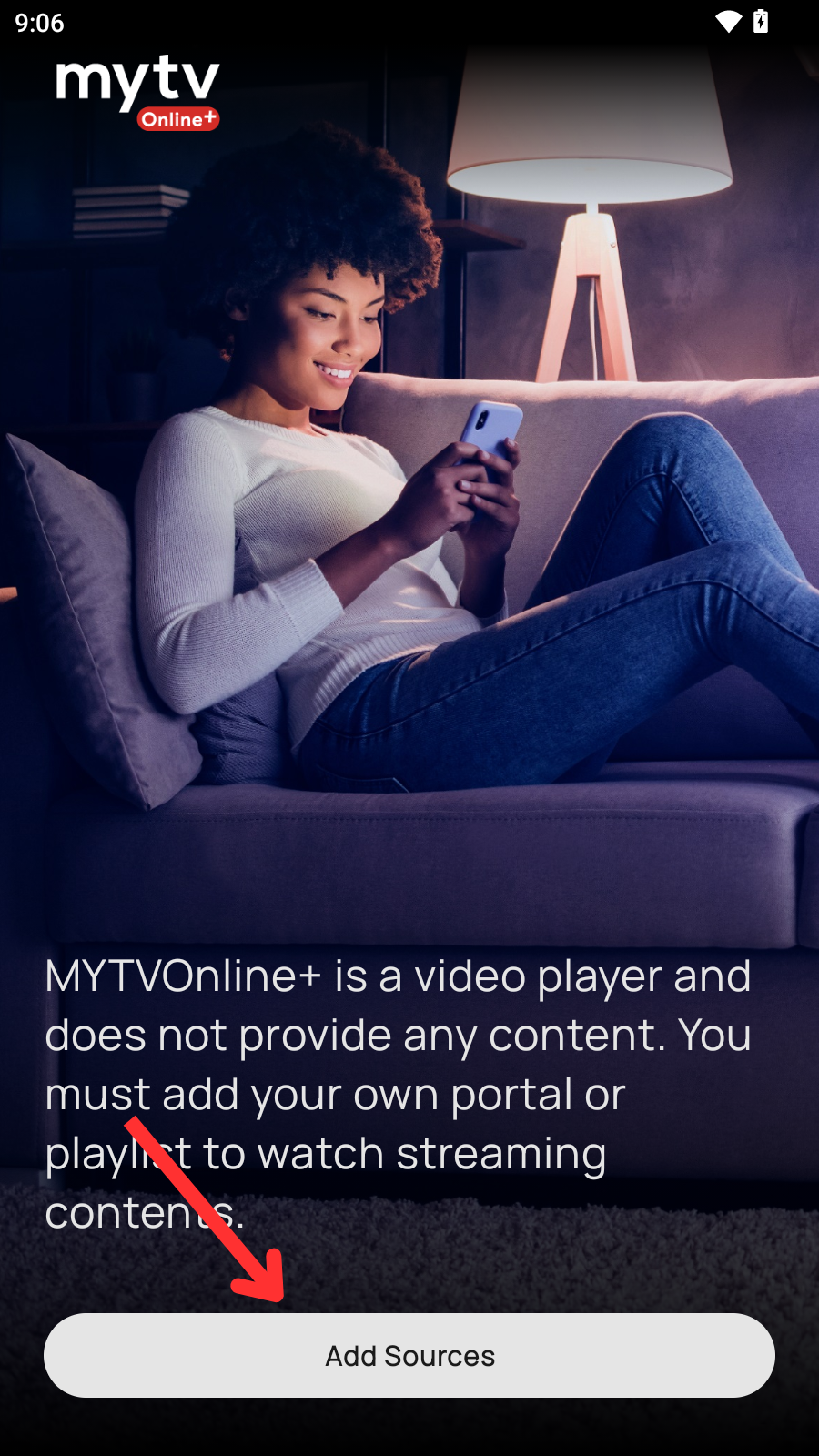
Click Add Source
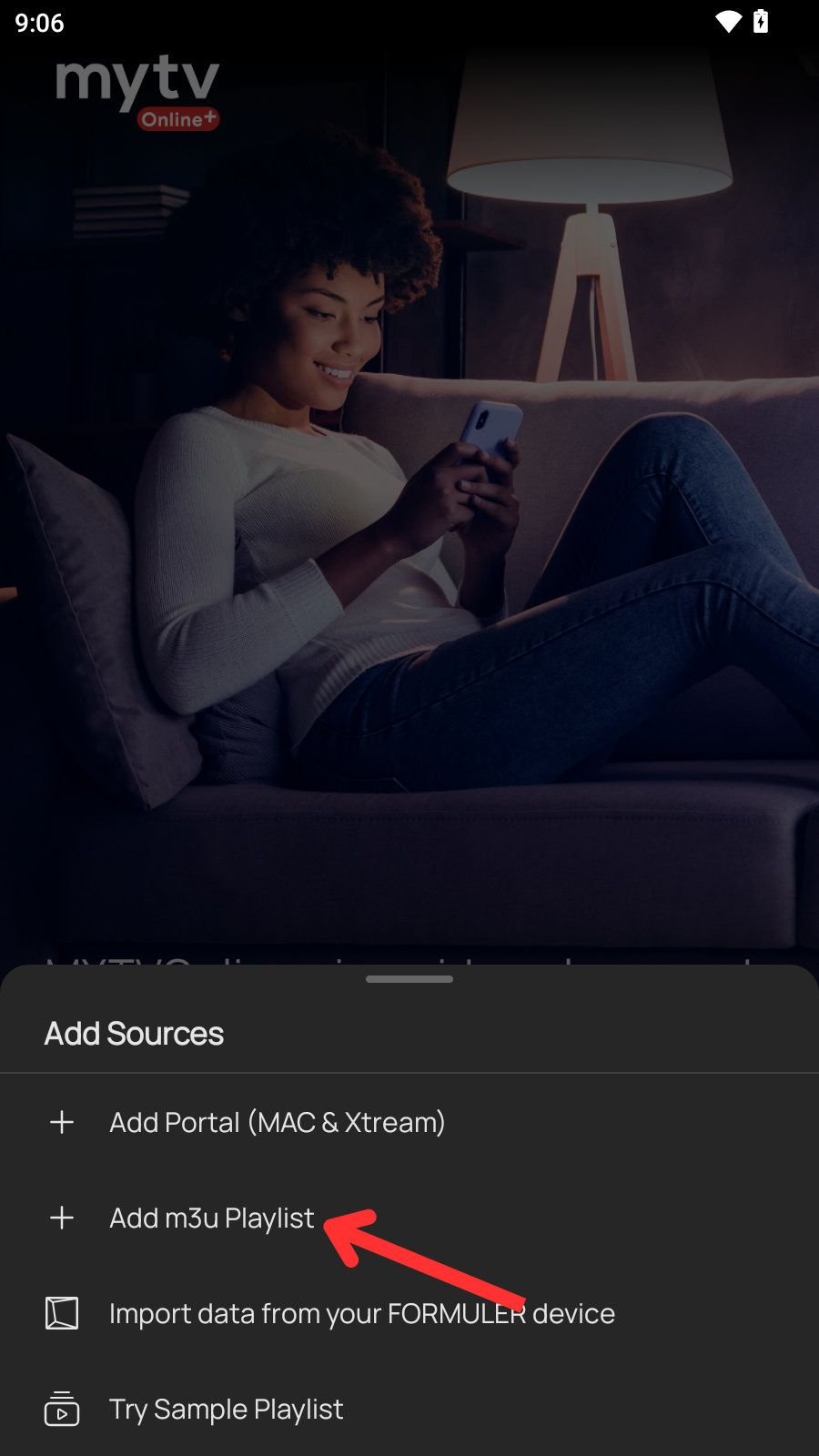
Select Add m3u playlist
Under Nickname, you can give the playlist a name.
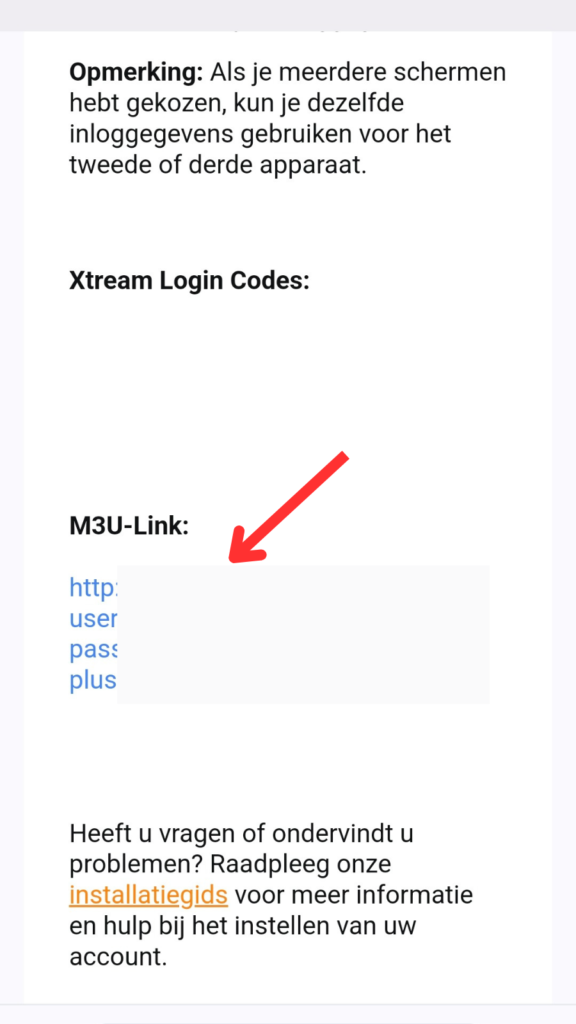
Under m3u link, you can copy the link you received in the email and paste it into the app.
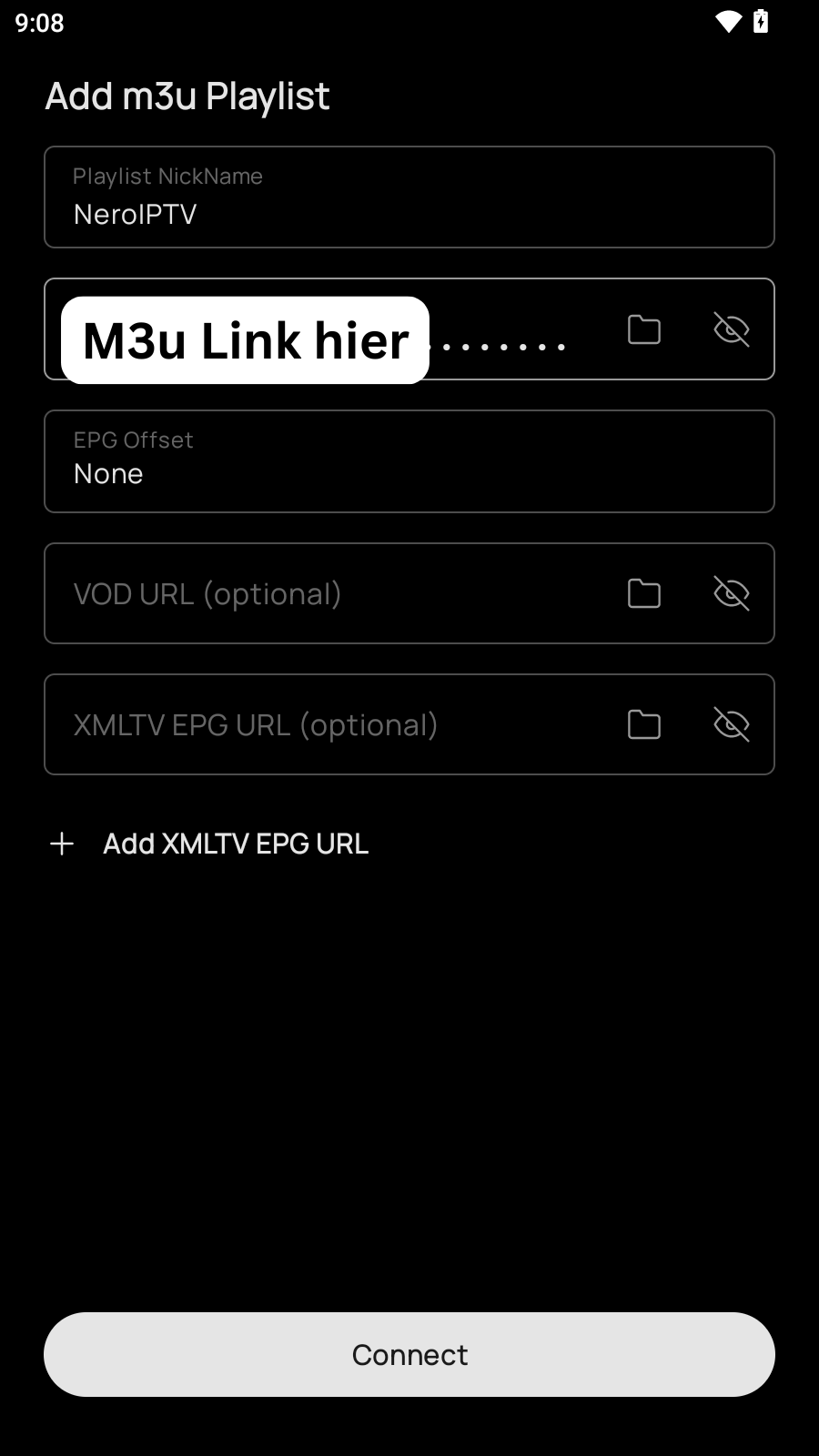
Then click the Connect button.
Android TV / Apple TV
Android TV
You can use any IPTV player on your Android TV or Box. We chose Televizo because it is a free app and available on PlayStore.
Download the Televizo app from PlayStore.
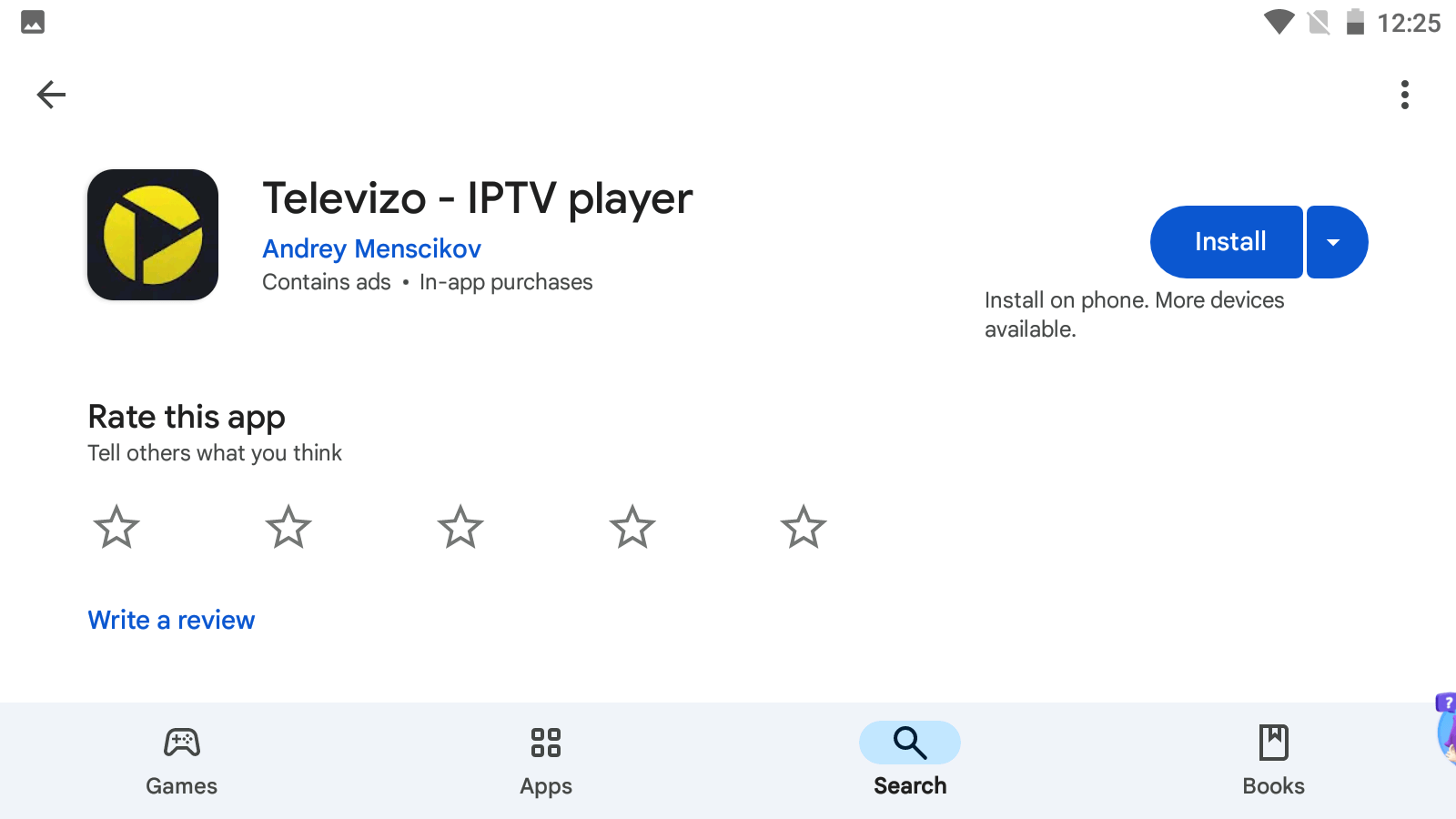
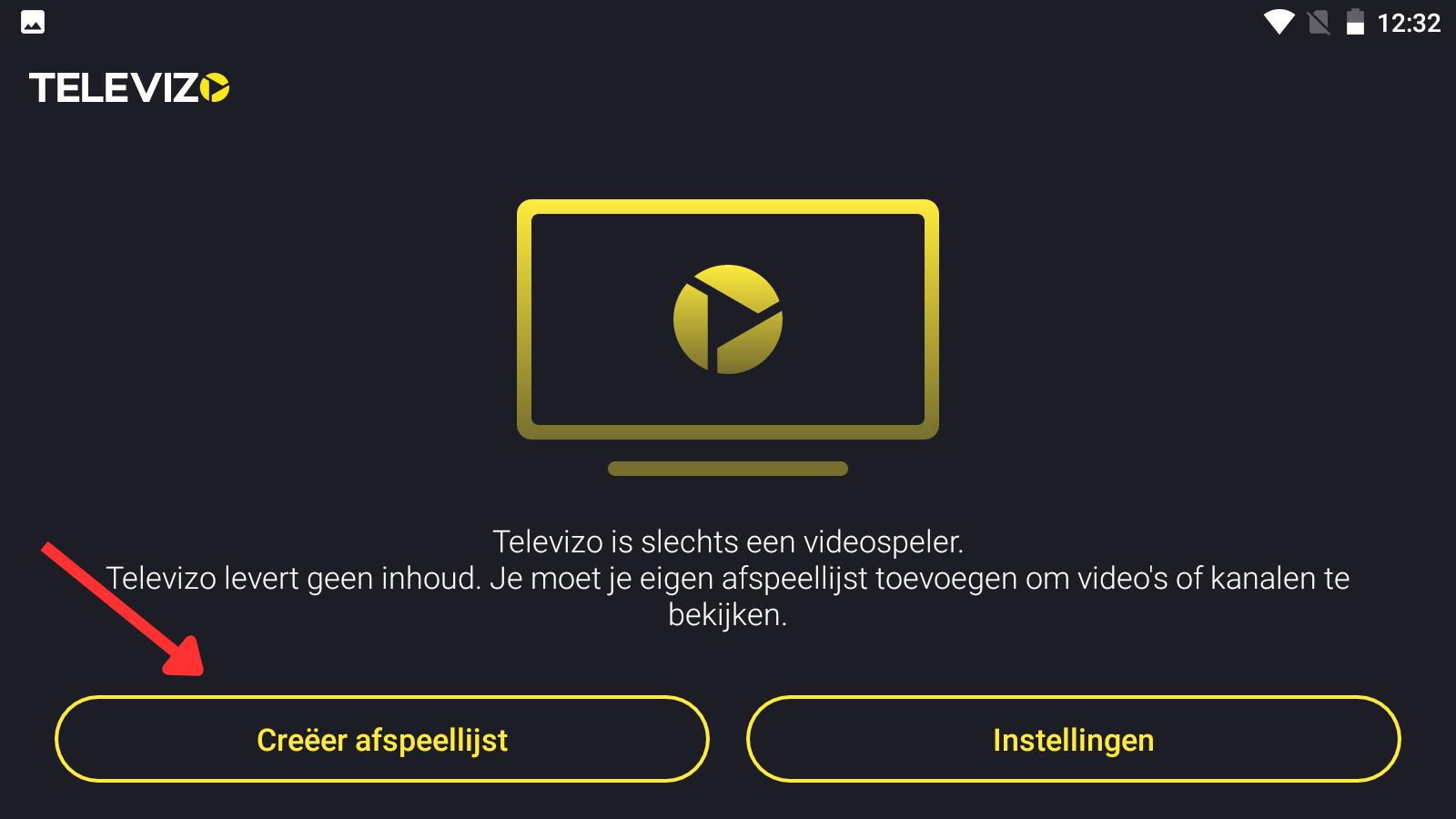
Click Create Playlist.
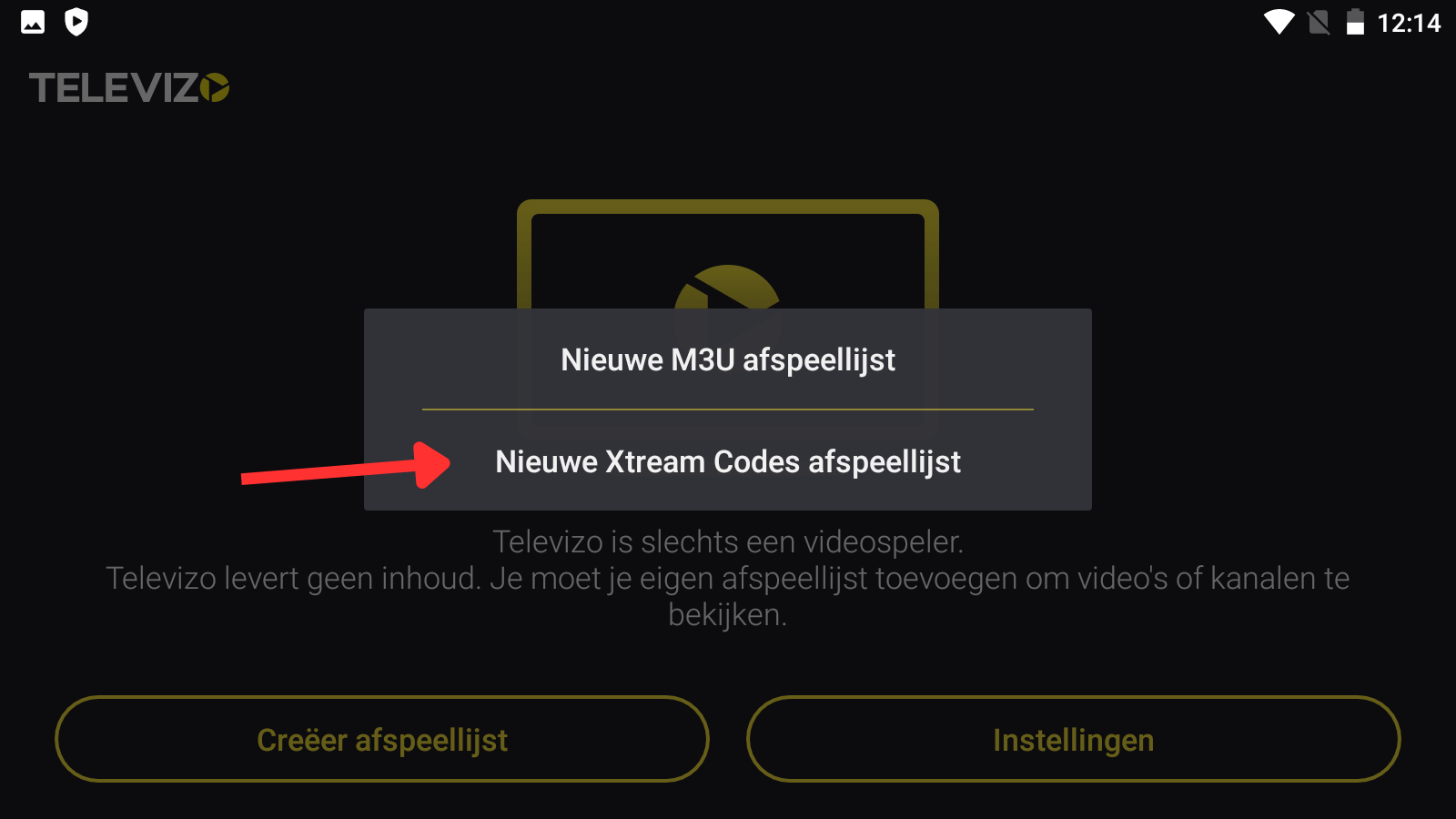
Select the New Xtream Codes playlist.
Fill in the details using the logins you received by email. When you are finished, check that the details you have entered are correct and click on the Check icon in the top right-hand corner to save the details.
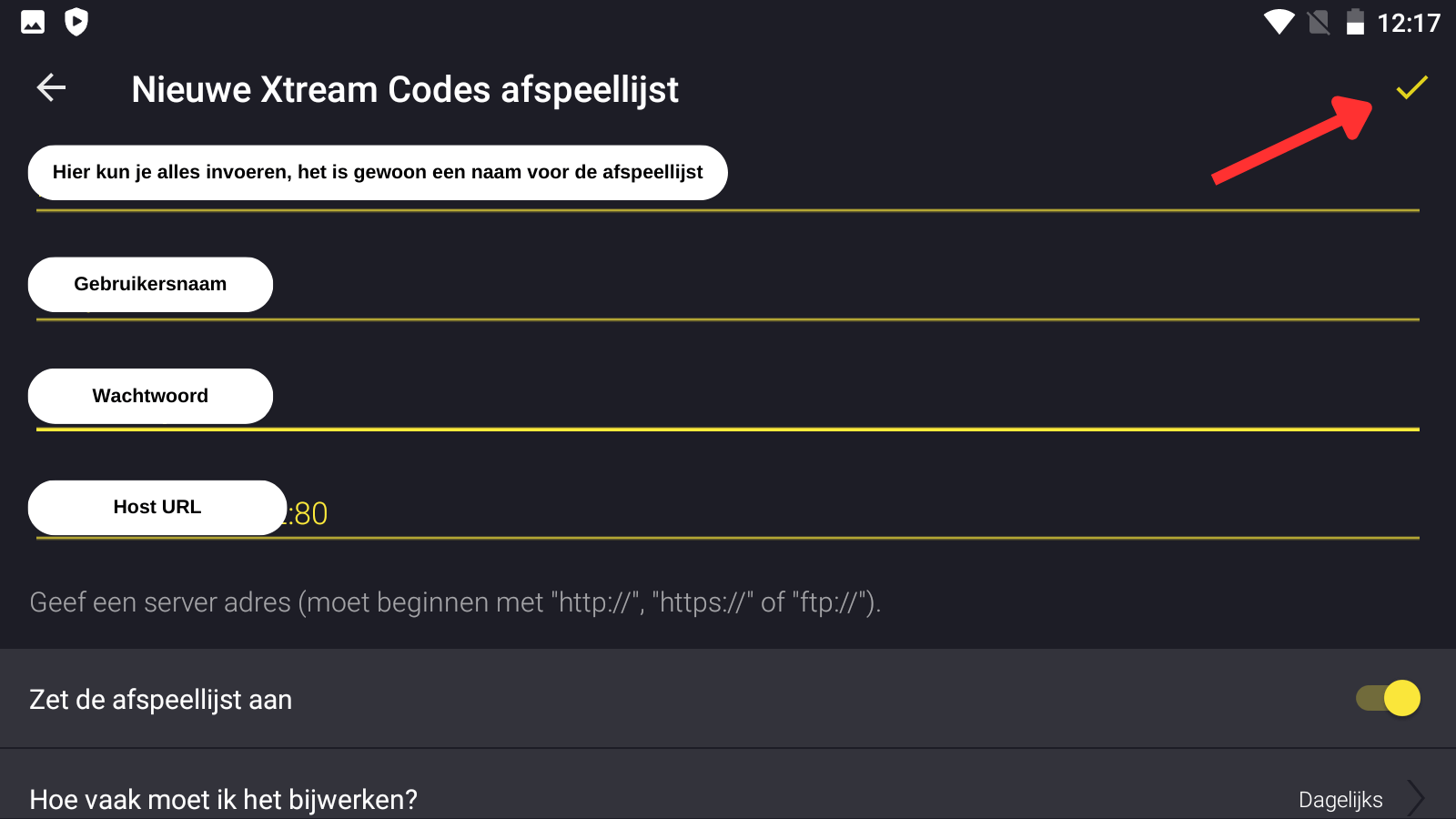
Click Save.
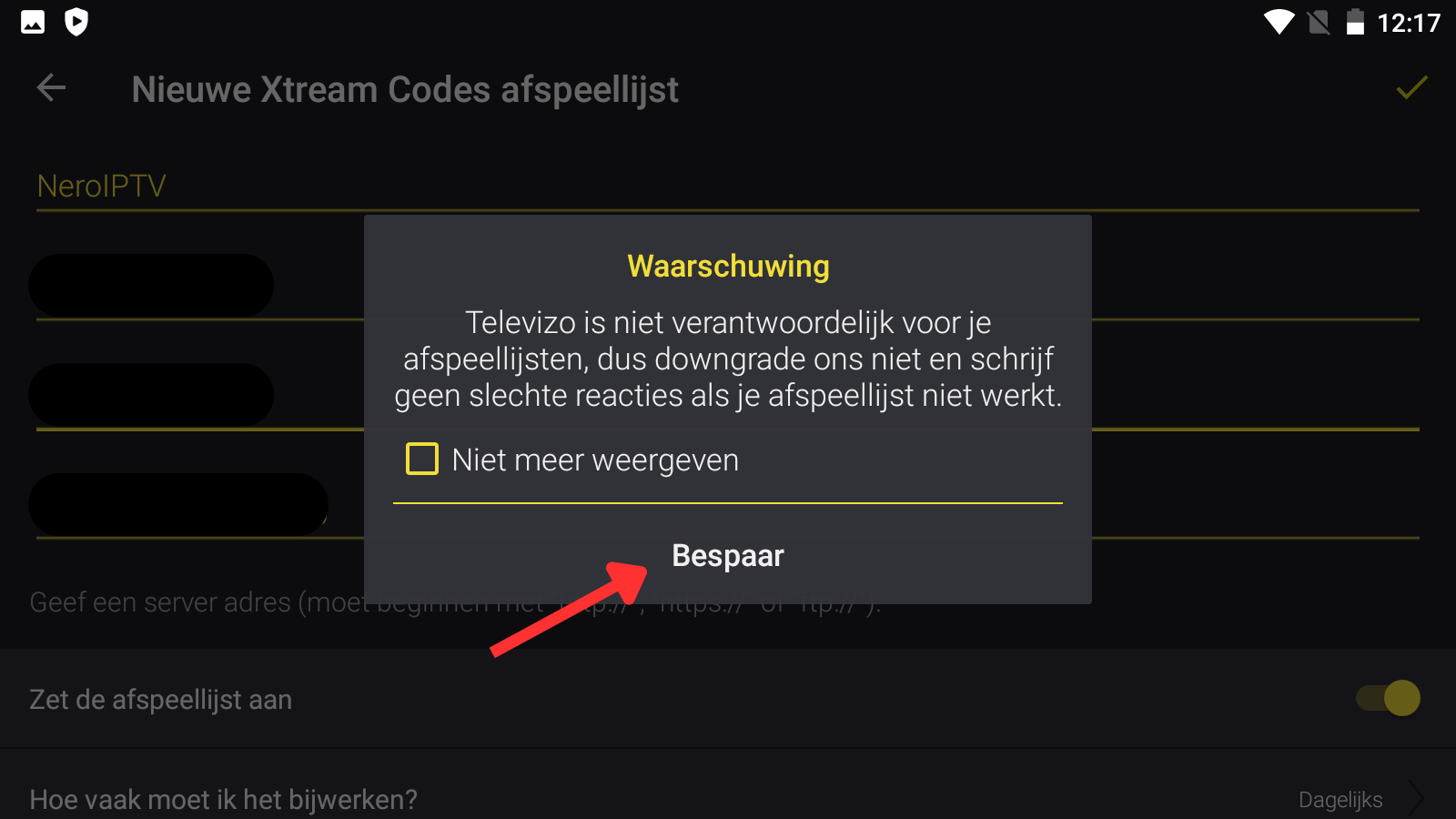
Now you can see that the playlist has been loaded.

Apple TV
You can find and download the Smarters Player Lite app in the App Store.
After downloading, open the app and enter the login details you received by email.
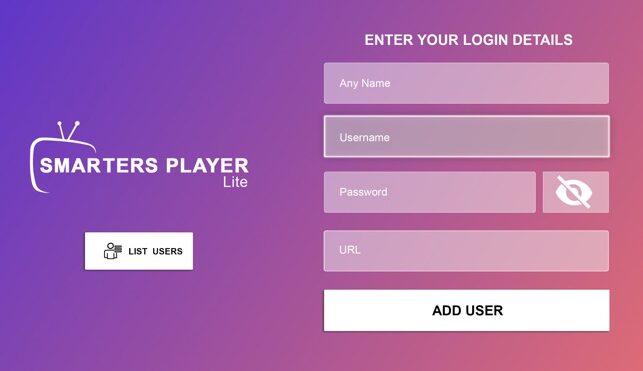
Now click on “ADD USER” to proceed to the next section.
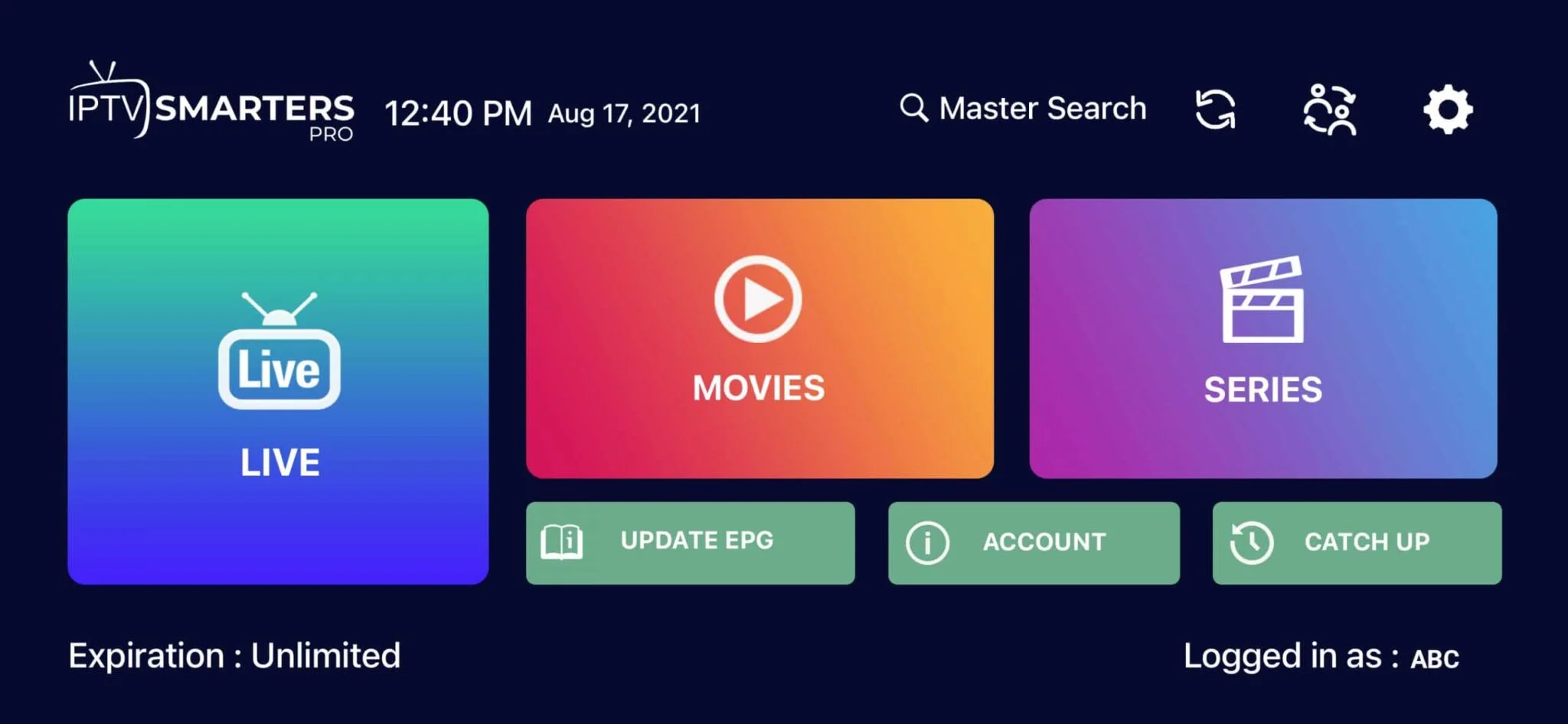
Windows / Mac
For Windows users, you can use the IPTV Smarters Expert app.
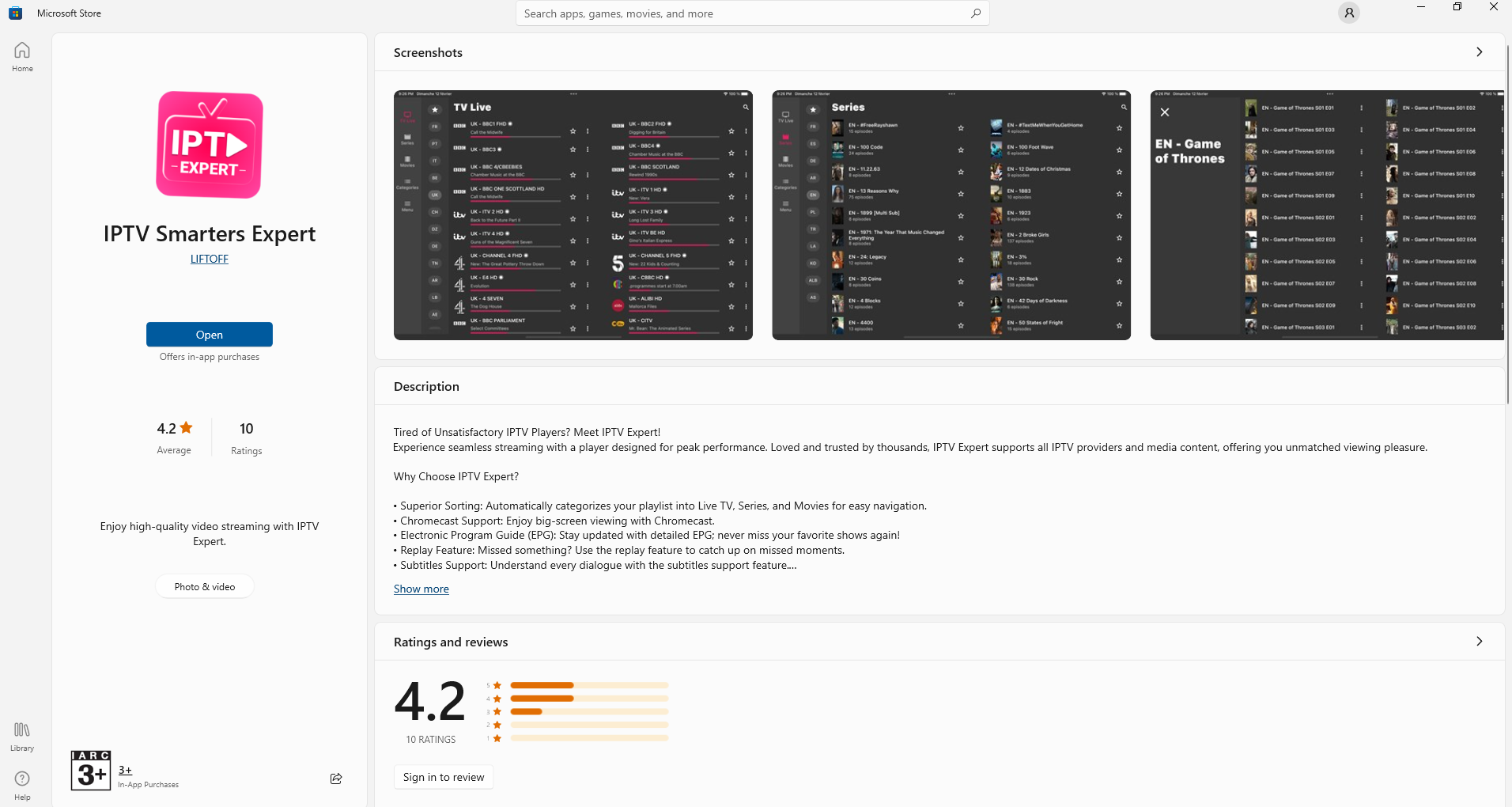
Download link: https://www.microsoft.com/store/productId/9MVX7C3Q1156?ocid=pdpshare
For MAC users, you can use the IPTV Smarters Pro app.
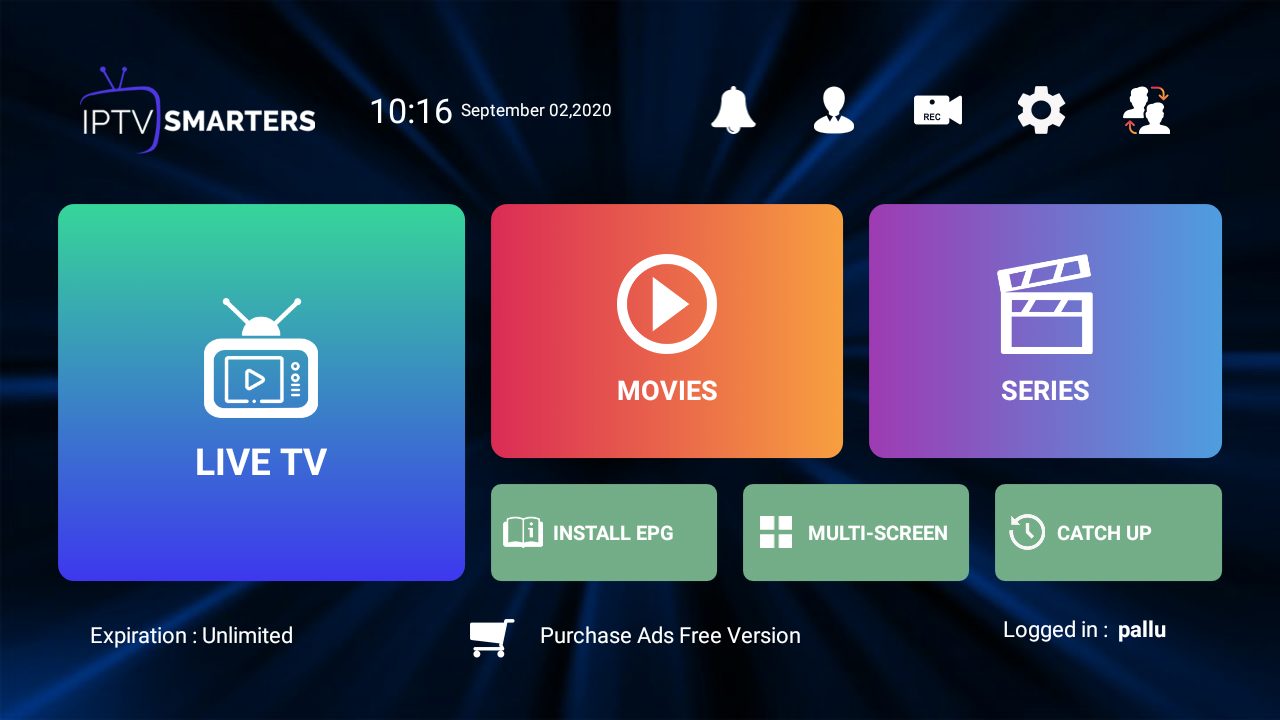
Download Link: https://www.iptvsmarters.com/download?download=mac
Amazon Fire Tv Stick
Firestick installation guide
1. Click on the Magnifying Glass > Search option on the FireStick home screen. Type the name of the app (Downloader). Click on the Downloader option when it appears in the search results.
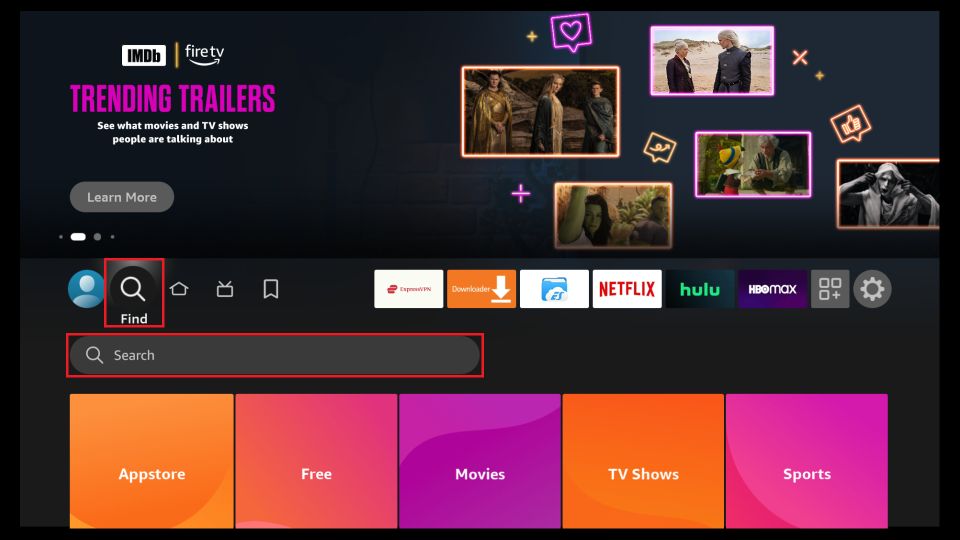
Select the Downloader icon on the next screen and download and install the app.
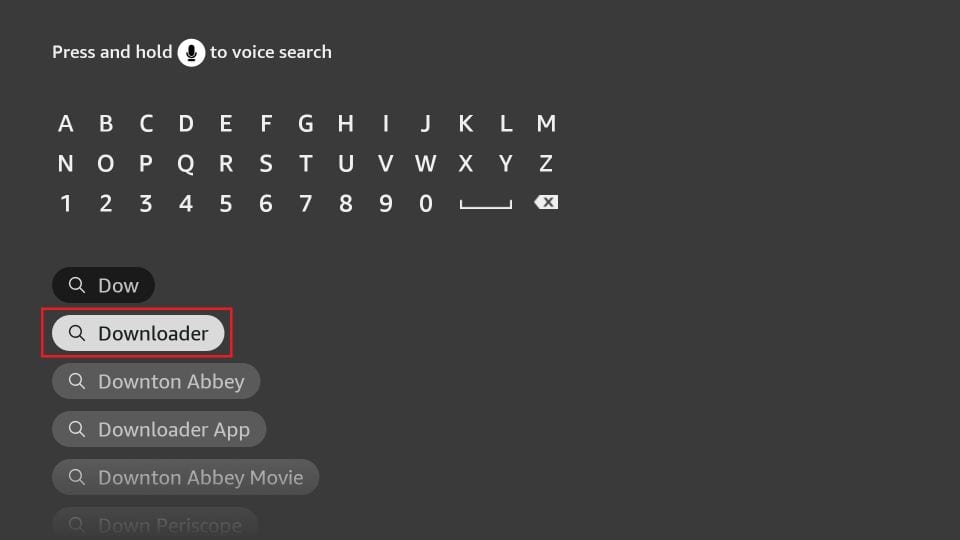
2. Click Settings. Then select the My Fire TV option. When the following options appear on the next screen, click Developer Options.
Next, select Install from Unknown Apps. Enable Downloader to change its status to ON.
Note: If you don't see Developer Options, go to Settings > My Fire TV > About, select Fire TV Stick, and click it 7 times to enable developer options.
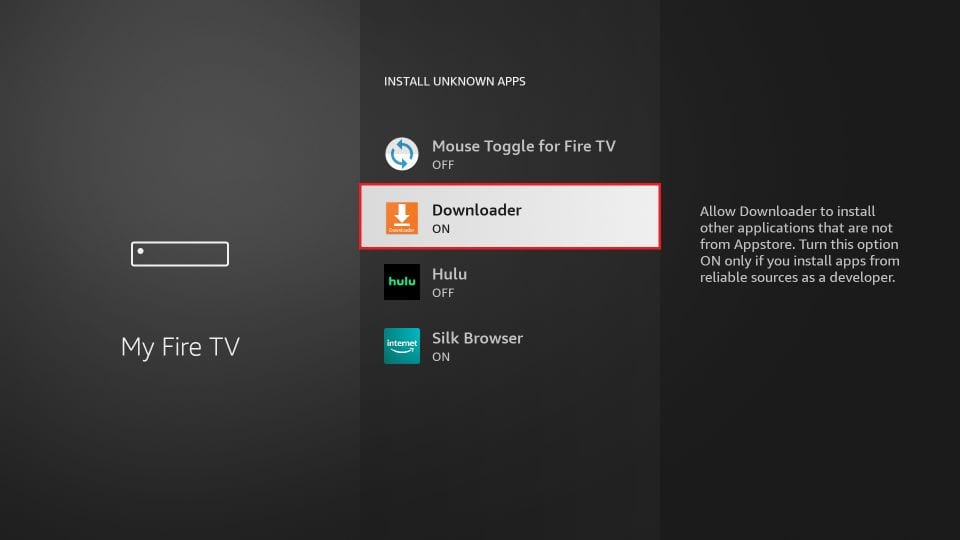
This completes the configuration of your FireStick settings to allow the installation of IPTV Smarters and other third-party apps.
Download IPTV Smarters Pro APK
Here are the steps:
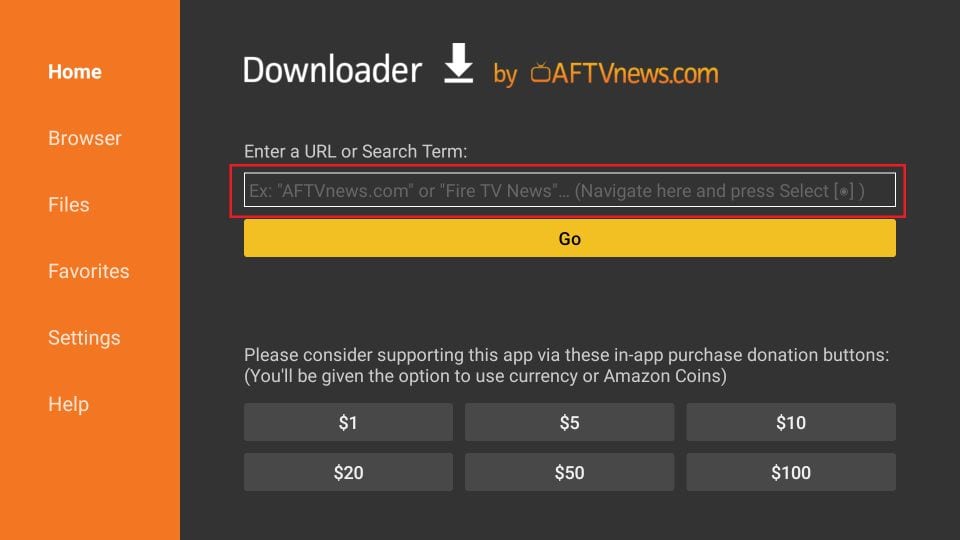
1. Open the Downloader app.
On this screen, click the URL text box on the right (make sure the Home option is selected in the left menu).
Note: A series of prompts will appear when you use this app for the first time. Ignore them until you see the next screen.
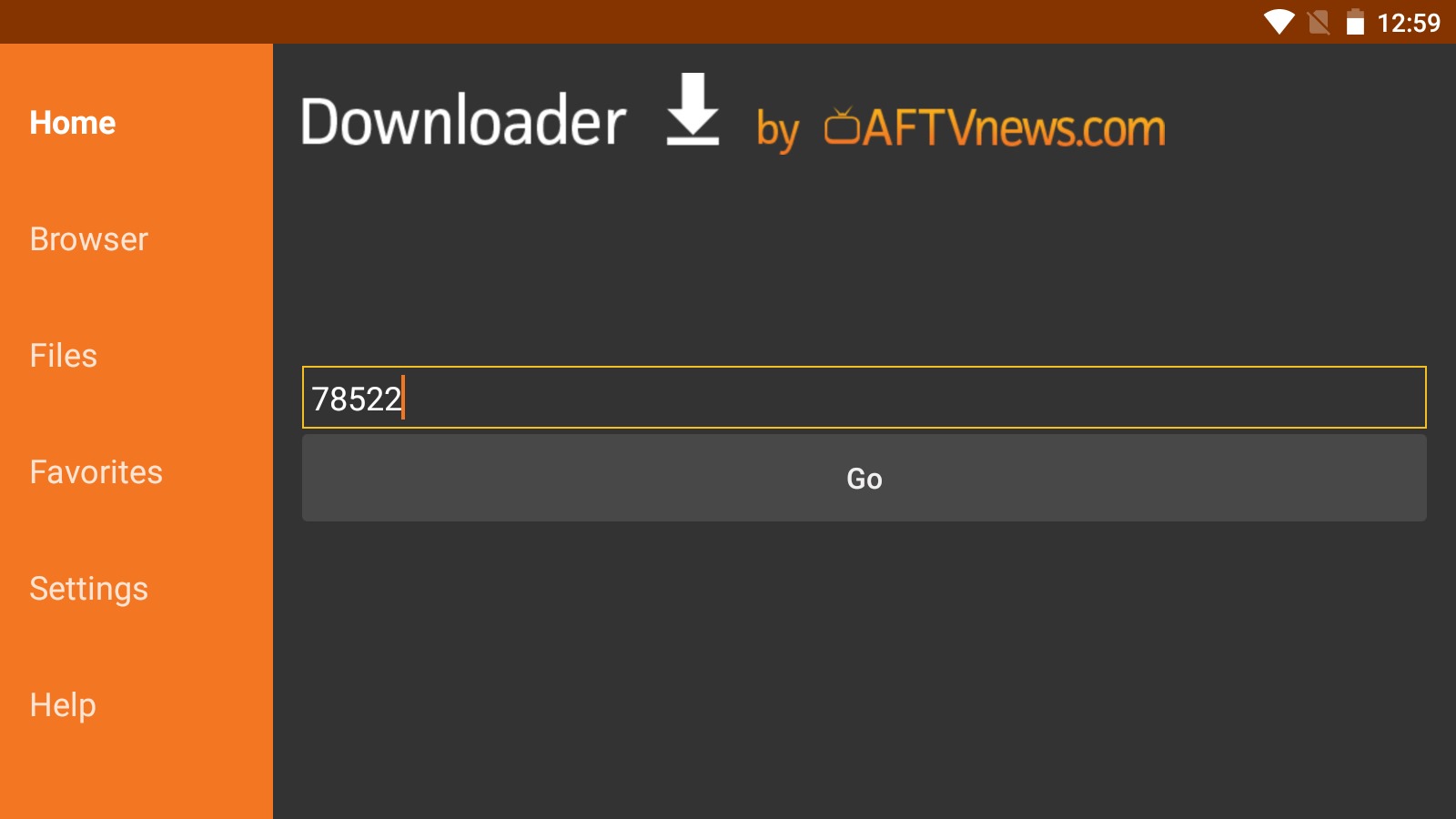
2. Go ahead and enter the following code in this window: 78522. Then click GO.
3. Allow a minute or two for the IPTV Smarter to download to your FireStick device.
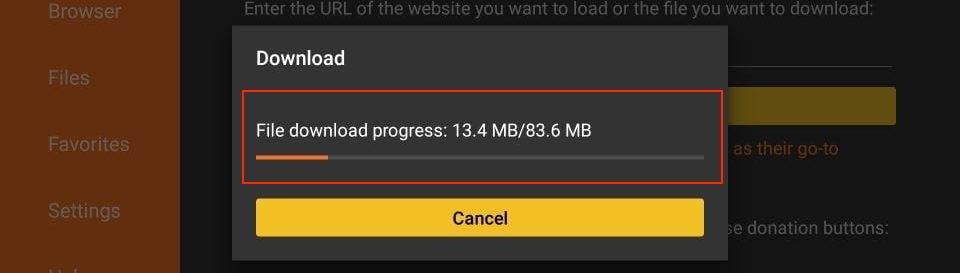
4. When the download is complete, the Downloader app will run the APK file and begin the installation. Click Install.
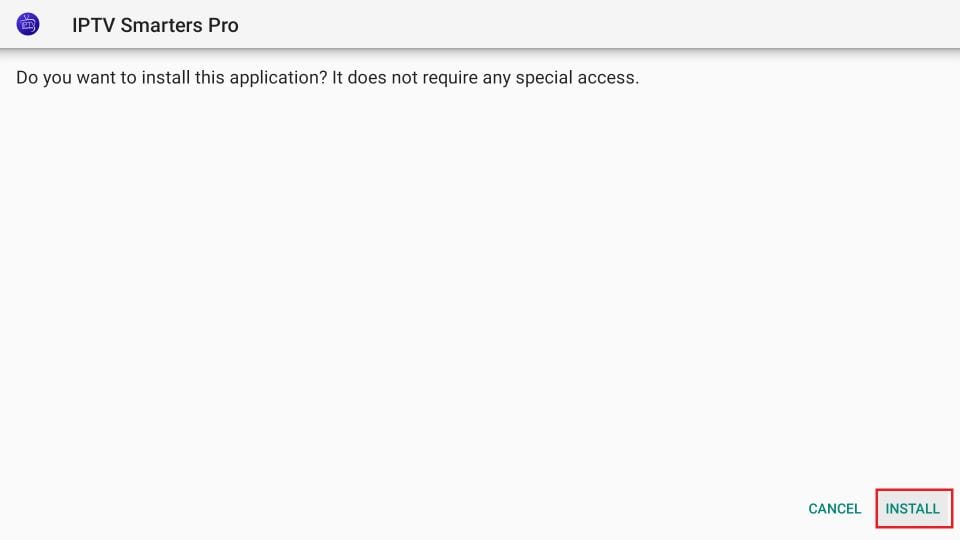
5. Wait until the installation is complete.
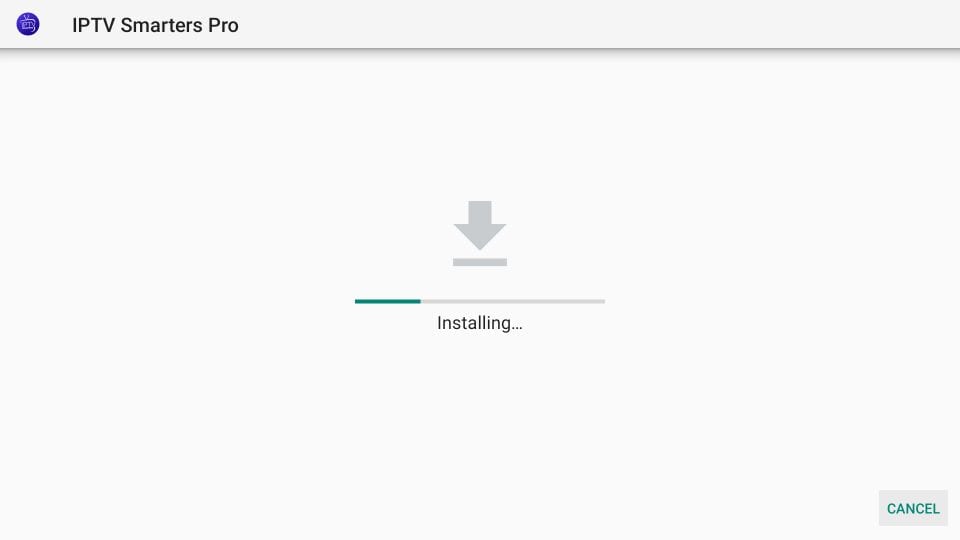
6. The installation is complete with a message stating that the app has been installed. You can now choose to click OPEN and get started with IPTV Smarters.
I recommend choosing DONE so you can first delete the APK file and save some space on your FireStick storage.
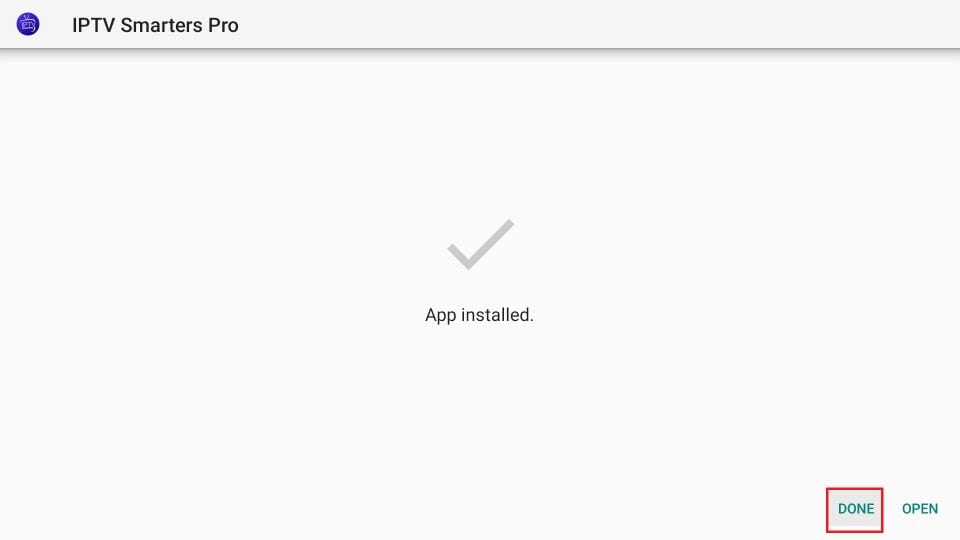
7. Clicking DONE above will return you to the Downloader interface. Click Remove.
Great! You now have the IPTV Smarters app on FireStick.